
As of August 2026, Grok Imagine is xAI’s image and short-video generation stack. You can make a still from a prompt, edit with references, then animate that still into a short clip—often with native audio when the video mode offers it.
This Grok Imagine tutorial walks through that image → animate workflow end to end. Steps stay practical: what to click, what to write, what to check before you export.
You can try the same model family two ways: the official Grok / xAI path (grok.com/imagine, Grok apps), or Movby.ai, an independent aggregator that runs Grok Imagine among other models.
What you can do with Grok Imagine
- Text → image — describe a scene and generate a still.
- Image → image / edit — upload a photo or concept frame and restyle or revise it with a prompt (and references where the UI allows).
- Text → video — generate a short clip from a prompt alone (Grok Imagine video).
- Image → video (animate) — use a still as the starting frame and describe motion.
- Audio on video (when available) — dialogue, SFX, ambience, or music generated with the clip, depending on the product surface.
Image mode and video / animate mode share the brand name but are different jobs: lock the look first, then add motion.
Before you start
- Path A (official): An X or xAI / Grok account. Generation usually needs a paid Grok or X plan; free accounts may see Imagine but hit a paywall. Confirm current access on grok.com or in the Grok app—plans and limits change.
- Path B (Movby.ai): Create an account. New users typically get about 30 free credits with no card required; see live details on Movby pricing.
- Prepare: one clear subject idea, an optional reference image, and a target aspect ratio (e.g. 1:1 for feeds, 9:16 for Stories/Reels, 16:9 for YouTube).
How to use Grok Imagine on the official path (Path A)
Official entry points as of writing: grok.com/imagine, the Grok iOS/Android apps, and Grok inside X. Labels move; the flow below stays UI-agnostic.
- Open Imagine — Sign in, open the Imagine / media generation area, and confirm your plan can generate (not only preview).
- Generate a still — Choose image / text-to-image. Write a short prompt (subject, setting, lighting, framing). Set aspect ratio if offered. Generate and pick the strongest frame.
- Optional edit — If image edit / reference upload is available, refine the still before animating. Prefer one clean hero frame over a busy collage.
- Animate to video — Open video / animate / image-to-video. Attach or select your still as the start frame. Add a motion prompt (camera move + subject action). Set duration and resolution if the UI shows them.
- Review audio — If the clip includes sound, listen once: dialogue sync, SFX timing, music level.
- Export / share — Download or share from the library. Note any plan, watermark, or usage limits shown in-product.
Tradeoff: official Grok is the source product and often the newest consumer UI, but access and quotas depend on your X/Grok subscription.
How to use Grok Imagine on Movby.ai (Path B)
Movby.ai is an independent platform that runs Grok Imagine alongside other image and video models. It is not affiliated with xAI. Use it when you want Grok Imagine in a multi-model workspace, or when you prefer Movby’s signup and credit flow over an X Premium / SuperGrok plan.
Sign up and credits
- Create an account at Movby.ai.
- Check your credit balance. Signup typically includes ~30 free credits; rules and free daily uses (if any) are listed on pricing.
- Credit cost per run is shown in the generator UI before you submit—don’t rely on third-party guesses.
Make the image (text-to-image or image-to-image)
- Open the Grok Imagine image generator.
- Pick Text to Image or Image to Image.
- Enter your prompt. For image-to-image, upload references (product copy mentions up to 5 references).
- Choose aspect ratio (e.g. 1:1, 16:9, 9:16).
- Generate. Stills often finish in about 30 seconds.
- Download the frame you want to animate.
Related tools if you switch modes later: text-to-image and image-to-image.
Animate that still (image-to-video)
- Open the Grok Imagine video generator, or the general image-to-video tool and select Grok Imagine if offered.
- Switch to Image to Video.
- Upload (or select) the still you just made.
- Write a motion prompt: what moves, how the camera moves, optional sound cues.
- Set ratio, resolution (up to 720p where offered), and duration (6s or 10s are common options on Movby for this model).
- Generate. Video often takes about a minute on Movby for Grok Imagine; wait time varies with load.
- Preview picture and audio, then download.
You can also start from Text to Video on the same Grok Imagine video page—no still required—if you only need a short clip from a prompt.
Neutral note: Path B is useful if you lack X Premium / SuperGrok access, or you want several models under one Movby account. Path A is better if you already live in Grok and want the vendor UI.
Prompt tips that actually help
For images: Subject + setting + lighting + camera/framing. Example: “Ceramic mug on a oak desk, soft window light from the left, 50mm product shot, shallow depth of field.”
For animate / image-to-video: Keep motion simple on 6–10s clips. Name one subject action and one camera move. Example motion line: “Steam rises slowly; camera eases in; quiet kitchen ambience.”
Avoid: Overstuffed style lists, conflicting directions (“frozen statue” + “sprinting”), and five camera moves in one short clip.
More short examples
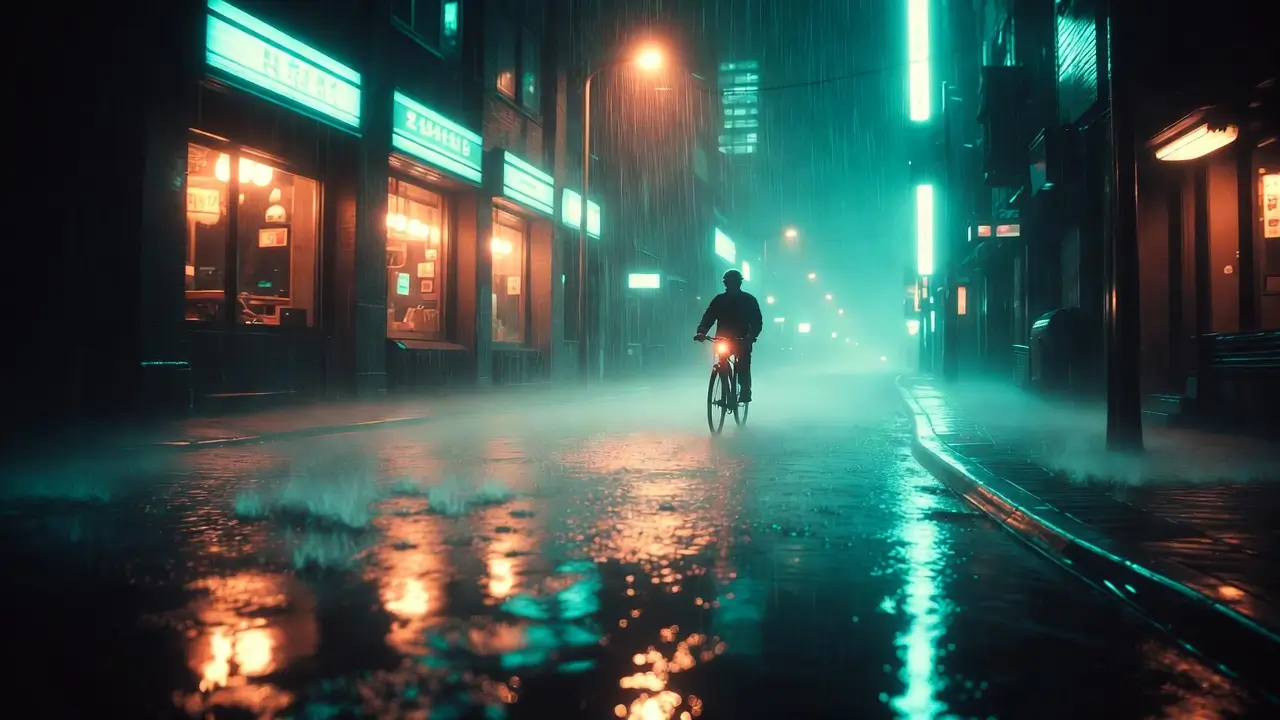
- Image: “Rainy neon alley, lone cyclist under a streetlamp, teal and amber reflections, wide shot.”
Motion: “Cyclist pedals away; camera tracks sideways; light rain and distant traffic.”
- Image: “Close-up of a mechanical watch on black velvet, studio softbox, macro.”
Motion: “Second hand ticks; subtle push-in; soft tick SFX only.” - Image: “Kids’ paper boat on a puddle, overcast day, eye-level.”
Motion: “Boat drifts forward; gentle ripple; birds far off.”
Common issues
- Weak motion / frozen subject — Motion prompt too vague. Add a concrete verb and one camera cue; regenerate.
- Face / hand artifacts — Start from a cleaner still; simplify pose; avoid extreme close-ups of hands if they keep breaking.
- Audio mismatch — Re-prompt with clearer sound cues, or mute/replace audio in an editor if the take is wrong.
- Usage / commercial limits — Official Grok and Movby each have their own terms. On Movby, check pricing and the site terms for free vs paid commercial use—policies can change.
- Queue / wait variance — Peak times stretch video jobs; image jobs are usually shorter. Retry later if the queue stalls.
Official Grok vs Movby.ai
| Access | Best for | Limits to know | |
|---|---|---|---|
| Official Grok / xAI | grok.com/imagine, Grok apps, Grok on X; typically needs a paid plan | Users already on Grok/X who want the vendor product | Quotas and paywalls change; confirm in-app |
| Movby.ai | Email signup; ~30 starter credits per pricing | Trying Grok Imagine without an X plan, or comparing models in one place | Credit-based; video often 6s/10s up to 720p on this surface; not xAI |
Same model family, different accounts and packaging. Pick by access and workflow—not by “official means always better for every task.”
FAQ
How do I use Grok Imagine for beginners?
Start with a still. Write a short image prompt, generate, pick one clear frame, then open animate / image-to-video and describe only the motion. Do that once on either official Imagine or Movby’s image then video pages. Save the first successful still + motion pair as your template.
Can Grok Imagine turn an image into a video?
Yes. That is image-to-video / animate: the still anchors the first frame, and the motion prompt drives camera and subject movement. On Movby, use Grok Imagine video or image-to-video. Official Grok exposes the same idea inside Imagine video tools when your plan includes them.
Is Grok Imagine free?
It depends on the path. Official consumer generation generally requires a paid Grok or X plan as of 2026—verify on grok.com. Movby typically gives new users ~30 free credits; see pricing for what free includes right now.
Do I need X Premium?
For the official path, some form of paid X or SuperGrok-style access is usually required to generate—not only chat. Exact tier names and limits change; check the plan screen when you open Imagine. For Movby, you do not need X Premium; you use a Movby account and credits.
Can I use outputs commercially?
Treat official Grok and Movby as separate licenses. Read xAI/Grok terms for Path A. For Path B, read Movby’s pricing and terms—do not assume free and paid tiers match. When in doubt, use a paid tier that explicitly allows commercial use, or ask legal counsel for client work.
How long are Grok Imagine videos?
Short clips. On Movby’s Grok Imagine video UI, 6s and 10s are common options, often up to 720p. Official API and apps may offer other durations (xAI docs describe configurable lengths on video models). Always use the duration control you see in the product you’re using.
What’s the difference between Grok Imagine image and Grok Imagine video?
Image mode makes or edits stills (text-to-image, image-to-image). Video mode makes short clips (text-to-video or image-to-video) and may include native audio. For the workflow in this guide, finish the still first, then animate.
Closing
Workflow in one line: prompt a still → animate with a motion line → export.
Try the official surface at grok.com/imagine, or run the same image → video path on Movby via Grok Imagine image and Grok Imagine video.