
If you have been searching for how to use Nano Banana online, here is the short answer: you can run Google’s Nano Banana image model in a browser without installing the Gemini App and without a separate Google AI subscription. Movby.ai is an independent platform that provides access to Nano Banana (including Nano Banana, Nano Banana Pro, and Nano Banana 2 where available), so you can generate and edit images from a normal web page.
That matters because many people want a Nano Banana image generator for product shots, portraits, ads, or photo edits—but they do not want another app install, another account stack, or a locked-in Google billing relationship just to test a few images. This guide walks through what Nano Banana is, how browser access compares with the Gemini App, what you need before you start, and a step-by-step workflow you can follow today.
By the end, you will know which mode to pick (text to image vs image to image), how the model variants differ, which prompts tend to work well, and where to generate your first image.
What Is Nano Banana?
Nano Banana is Google’s AI image model for creating and editing pictures. It is commonly used as:
- A Nano Banana text to image tool (prompt → new image)
- A Nano Banana image to image tool (upload a photo → edit, restyle, or restore)
Creators often reach for it when they need strong subject consistency—faces, characters, and product details that stay recognizable across edits. That makes it useful for marketing creatives, product mockups, portrait variations, social ads, and photo restoration, not only one-off concept art.
On Movby.ai, Nano Banana sits inside a broader AI image generator workspace. You can stay on Nano Banana for a session, or later compare results with other models in the same account if you want a second opinion on the same prompt.
Nano Banana vs Gemini App vs Browser Online
| Factor | Gemini App | Google account–centric web flows | Browser online (e.g. Movby.ai) |
|---|---|---|---|
| Install required | Yes (mobile app) | Usually no | No |
| Depends on Google app / subscription ecosystem | Often yes | Often yes | No separate Google AI subscription needed to try |
| Time to first image | App download + setup | Account / plan friction | Sign up → prompt → generate |
| Best for | Users already living in Gemini | Users already in Google’s AI stack | Fast trials, freelancers, marketers, mixed-tool workflows |
Takeaway: If your goal is to try Nano Banana quickly—especially on desktop—browser online is usually the fastest path. You open a page, sign in once, and generate. Movby.ai is not a Google product; it is an independent platform that runs Nano Banana and other models so you can create without installing Gemini.
What You Need Before You Start
You only need a few basics:
- A Movby.ai account — email signup or social login, depending on what the site offers at the time.
- Credits — generations consume credits. New users get 30 free credits with no card required, which is enough to test prompts and modes.
- A modern browser — Chrome, Edge, Firefox, or Safari work fine.
- Optional reference images — for image-to-image edits (product photos, portraits, old scans, style references).
A few accurate expectations:
- Free-plan outputs are generally for personal / non-commercial use and may include watermarks.
- Paid plans remove watermarks and unlock commercial use for client work, ads, and product pages. Check the live pricing page for current plans and terms—prices change, so this article does not hard-code dollar amounts.
Once those are in place, you are ready for the workflow.
Step-by-Step: How to Use Nano Banana Online
Step 1: Open the Movby.ai Nano Banana page
Go directly to the Nano Banana workspace:
https://movby.ai/ai-image-generator/nano-banana
Using the deep link is faster than hunting through menus. You land in the image generator with Nano Banana as the focus.
Step 2: Sign up or log in
Create an account or log in. After signup, free credits are applied automatically so you can generate without entering payment details. If you already have an account, log in and confirm your credit balance before longer sessions.
Step 3: Choose Text to Image or Image to Image
Pick the mode that matches your starting material:
- Text to Image — you only have a written idea. Best for new concepts, ad drafts, and invented scenes. Learn more on the Text to Image page.
- Image to Image — you already have a photo or reference. Best for edits, outfit/background changes, restorations, and style transfers. See Image to Image.
You can switch modes later; start with the one that matches your first task.
Step 4: Select Nano Banana / Pro / 2
Where the platform offers multiple variants, choose based on your priority:
| Variant | Typical fit | Tradeoff |
|---|---|---|
| Nano Banana | Quick drafts, everyday edits, fast iteration | Speed first |
| Nano Banana Pro | Higher detail, polish for near-final creatives | More quality, usually slower |
| Nano Banana 2 | Newest generation; stronger prompt understanding | Best when complex instructions matter |
Availability can change as models roll out. If you are unsure, start with Nano Banana for drafts, then rerun strong prompts on Pro or 2 for a cleaner final.
Step 5: Write a prompt (or upload a reference)
For text to image, describe:
- Subject (who / what)
- Setting and lighting
- Style (photo, studio, cinematic, flat lay)
- Composition and aspect needs (square social post, vertical story, wide banner)
For image to image, upload the reference first, then say what should change and what must stay the same (“keep the same face and product label; change background to soft daylight studio”).
Step 6: Generate, review, download
Click generate and wait. Images often finish in about 10–30 seconds, depending on model, load, and settings. Review the result:
- If composition is wrong, adjust framing language (“centered product, soft shadow, 45° camera”).
- If identity drifts in edits, restate what to preserve.
- If you like the draft, download and—if needed—iterate with a tighter prompt.
When the image is ready for real campaigns, confirm your plan covers commercial use on pricing before publishing.
Text-to-Image vs Image-to-Image: Which Mode to Pick
Use this simple decision guide:
| Your situation | Pick | Why |
|---|---|---|
| New idea, no photo yet | Text to Image | Fastest way to explore concepts |
| You have a product photo and need lifestyle variants | Image to Image | Keeps packaging/shape consistent |
| Portrait with same person, new outfits/backgrounds | Image to Image | Better identity lock |
| Old/damaged scan that needs cleanup | Image to Image | Model works from the original pixels |
| Social ad from a verbal brief only | Text to Image | No asset required to start |
| Style transfer from a mood board image | Image to Image | Style cues come from the upload |
Many workflows use both: draft in text to image, then refine a favorite frame with image to image, or reverse that order when a real photo is the source of truth.
Prompt Tips That Work Well with Nano Banana
Nano Banana responds well to concrete, visual language. Name the subject, lighting, lens feel, and what must not change. Here are copy-ready examples covering common creator jobs.
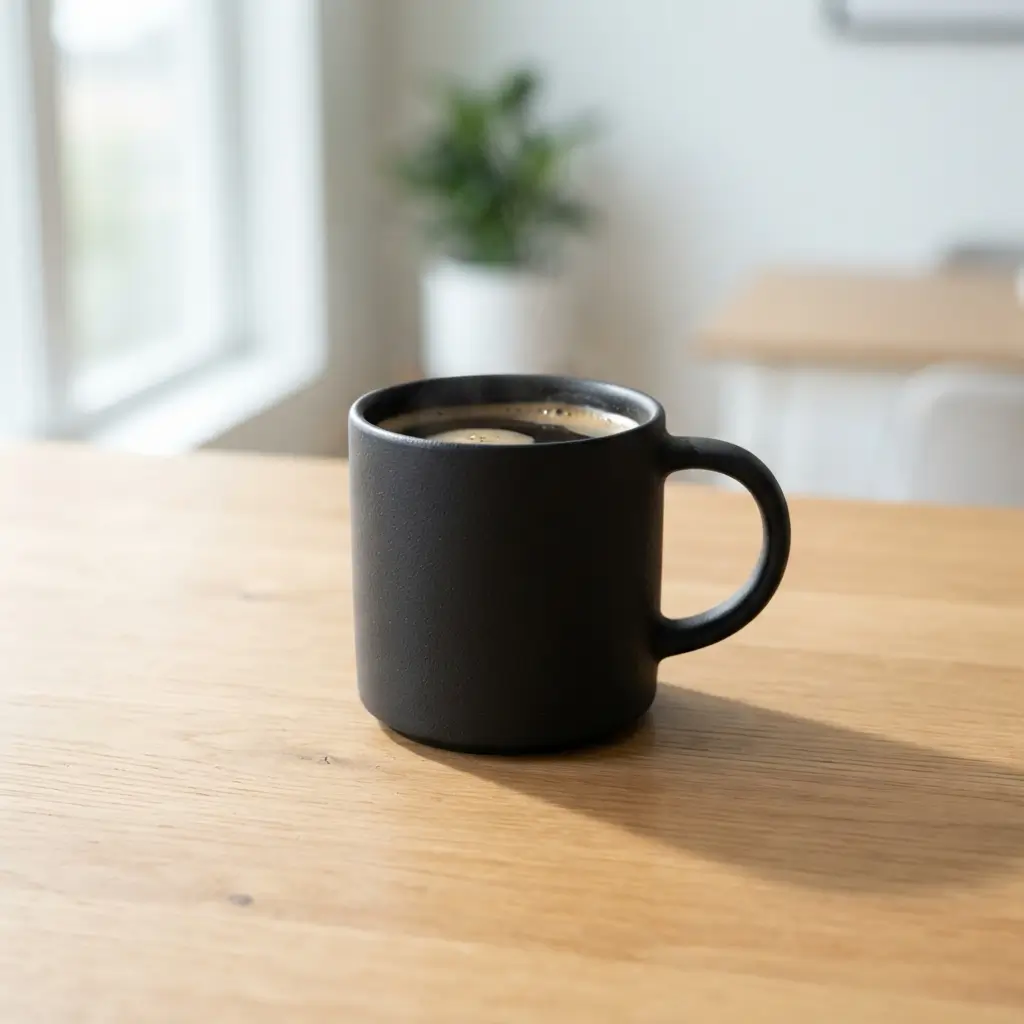
1) Product photo (text to image)
Studio product photo of a matte black ceramic coffee mug on a light oak table, soft window light from the left, gentle shadow, shallow depth of field, commercial catalog style, centered composition, clean background
2) Product lifestyle (image to image)
Keep the same bottle shape, label, and logo exactly. Place it on a marble kitchen counter with morning sunlight, soft bokeh plants in the background, realistic reflections, ecommerce lifestyle shot
3) Portrait (text to image)
Natural light portrait of a young woman with short curly hair, wearing a linen shirt, standing near a window, soft catchlights in eyes, 85mm look, skin texture preserved, editorial photography
4) Portrait edit (image to image)
Keep the same face, hair, and expression. Change outfit to a navy blazer over a white tee, move background to a modern office lobby with soft daylight, professional headshot framing
5) Social ad creative (text to image)
Bold social media ad visual for a fitness app: athletic runner on a rainy city street at dusk, cinematic contrast, space on the right for headline text, high energy, Instagram feed crop
6) Photo restore (image to image)
Restore this damaged old family photo: repair scratches and fade, recover natural color, keep faces recognizable, DSLR-quality detail, no beautify filter, archival portrait look
7) Style transfer (image to image)
Restyle this photo into watercolor illustration while preserving composition and subject identity, soft paper texture, muted pastel palette, gallery print style
8) Consistency pass (image to image, multi-reference if supported)
Combine these references: keep the character identity from image 1 and the outfit from image 2, place them in a sunny outdoor cafe, consistent lighting, photorealistic
Iterate by changing one variable at a time (background, lighting, or crop)—that usually beats rewriting the whole prompt every round.
Common Mistakes to Avoid
- Vague prompts — “make it nice” gives the model nothing to lock onto. Specify subject, light, and framing.
- Changing too many things at once in image-to-image — if identity drifts, tell the model what must stay identical.
- Publishing free-plan images commercially — free outputs may be watermarked and limited to personal use. Upgrade when you need client-ready rights; see pricing.
- Skipping model choice — drafting on the fastest variant, then finishing on Pro or 2, often saves credits versus starting “max quality” for every test.
- Ignoring aspect ratio — generate in the crop you actually need (1:1, 4:5, 16:9) instead of cropping a mismatched frame later.
- Treating Movby.ai as Google official — Movby.ai is independent access to the model. Features and availability can differ from Gemini App surfaces.
- One-and-done expectations — strong creatives usually take 2–4 iterations. Budget credits for revisions, not only the first attempt.
FAQ
Is Nano Banana free online?
You can try it free on Movby.ai: new users get 30 free credits with no card required. Free use is best for testing quality and workflow. For higher volume, watermark-free downloads, and commercial rights, use a paid plan—details live on pricing.
Do I need Gemini / the Gemini App?
No. For browser use on Movby.ai you do not need the Gemini App, and you do not need a separate Google AI subscription just to try Nano Banana. Sign up on Movby.ai and generate in the web workspace.
Can I use Nano Banana images commercially?
On Movby.ai, paid plans that include commercial use allow ads, product listings, thumbnails, and client work (subject to current terms). Free-plan generations are typically personal / non-commercial and may include watermarks. Always confirm the latest terms on the pricing page before launch.
What is the difference between Nano Banana, Nano Banana Pro, and Nano Banana 2?
Think speed vs quality vs newest understanding: Nano Banana for fast drafts, Pro for more detailed output, 2 for the newest generation with stronger prompt comprehension when available. Availability can vary; pick based on deadline and how final the asset needs to be.
How long does generation take?
Images often finish in about 10–30 seconds. Exact time depends on model variant, settings, and server load. Pro can take longer when it renders more detail.
Should I start with text to image or image to image?
Start with text to image if you only have a brief. Start with image to image if you already have a product shot, portrait, or photo that must stay recognizable.
Conclusion: Start Generating Nano Banana Images in Your Browser
You do not need the Gemini App to learn how to use Nano Banana online. Open a browser, sign in, choose text-to-image or image-to-image, pick Nano Banana / Pro / 2 based on speed vs quality, write a concrete prompt (or upload a reference), and generate. Movby.ai gives you a straightforward path to try a Nano Banana free credit allowance, then scale into paid plans when you need commercial, watermark-free work.
Ready to create your first image?