
The ChatGPT image generator is built into ChatGPT: you describe an image in plain language, refine it in the same chat, and download the result. As of 2026, that stack is powered by OpenAI’s GPT Image 2 (often labeled ChatGPT Images 2.0 in the product). This guide is for creators, marketers, and builders who want a practical workflow—not a model history lesson.
What is GPT Image 2 / ChatGPT Images 2.0?
GPT Image 2 is OpenAI’s current flagship image model. In the API it appears as gpt-image-2. In ChatGPT it is commonly branded as ChatGPT Images 2.0. It replaced older ChatGPT image paths (including earlier GPT Image versions and the older DALL·E-era default) as the main way most people generate and edit images in chat.
In practice, creators usually notice:
- Stronger instruction following on multi-part prompts
- Better on-image text (including many non-Latin scripts)
- Higher-fidelity stills for product, poster, and concept work
- Generation and editing in one conversation
What you need before starting
- A ChatGPT account on web, iOS, or Android.
- Access to ChatGPT Images. As of OpenAI’s help docs, ChatGPT Images 2.0 is available on all ChatGPT tiers. Some related features (for example, “Images with thinking”) are limited to certain paid plans—check the live help page for your account type.
- A clear use case. Rough concept art needs a looser prompt; a YouTube thumbnail or poster with exact wording needs tighter specs.
- Chat vs API decision. Use ChatGPT when you want conversation, iteration, and one-off assets. Use the OpenAI API (
gpt-image-2) when you need scripts, apps, batch jobs, or fixed size/quality parameters.
Usage limits, generation speed, and plan entitlements change. Confirm current limits in ChatGPT settings and OpenAI’s official docs rather than relying on third-party summaries.
How to generate an image in ChatGPT (step-by-step)
UI names below match common ChatGPT patterns as of 2026. If your layout differs slightly, the flow is the same: open a chat → request an image → refine → save.
1. Open a chat
Sign in at ChatGPT and start a new conversation (or continue one where you already have context).
2. Ask for an image (or open Images)
You can:
- Type a request such as “Generate an image of…” or “Create a poster that…”
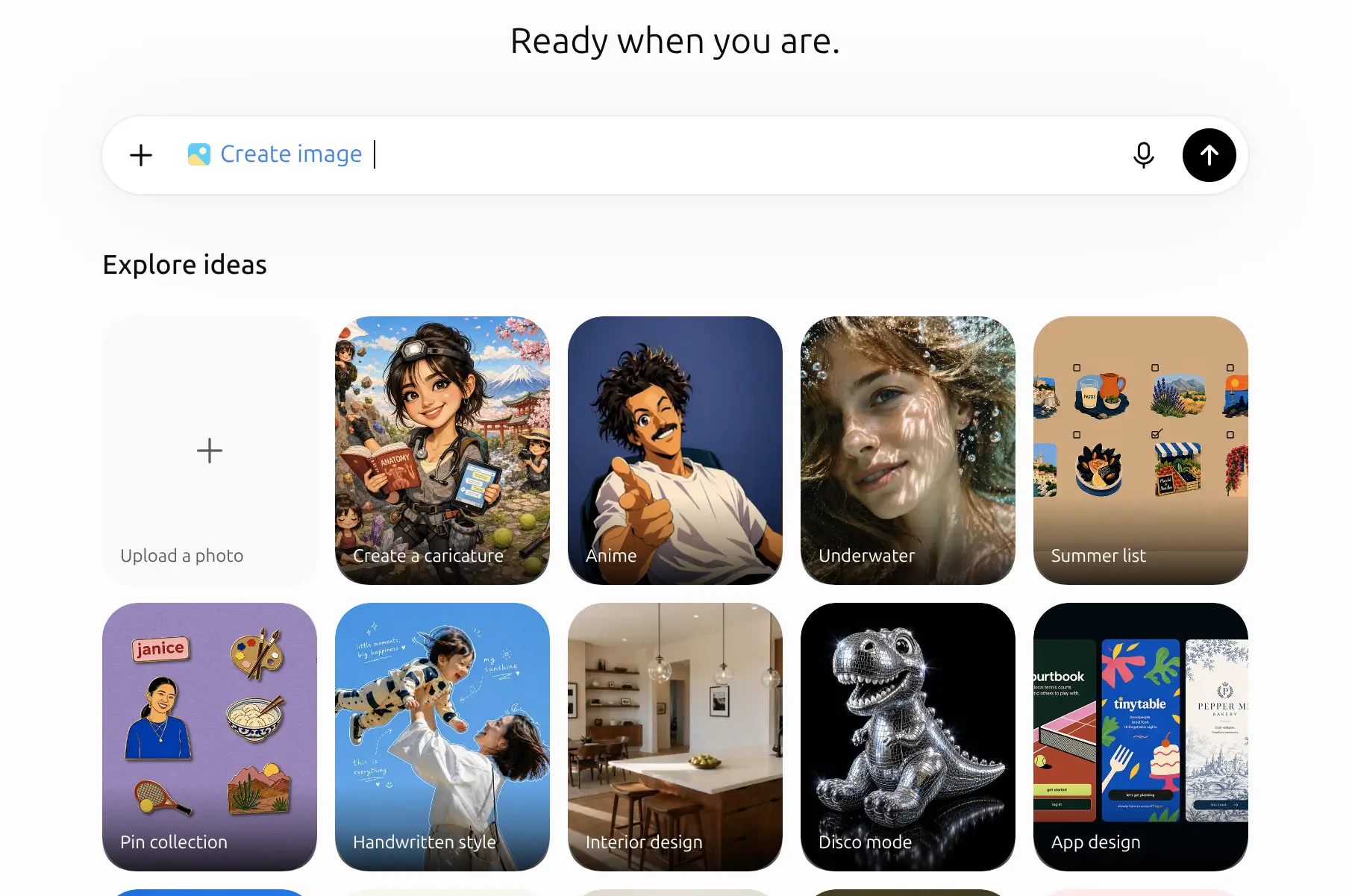
- Or open the image entry point (often under More → Images, or an Images area where past outputs are stored)
Either path should invoke ChatGPT Images / GPT Image 2 for standard image generation.
3. Write a clear first prompt
Aim for one to three concrete sentences. Cover:
- Purpose (thumbnail, mockup, poster, concept)
- Subject and action
- Setting / composition
- Style (photo, flat illustration, 3D render, etc.)
- Any text that must appear, in quotation marks
- Constraints (“no logos,” “keep background simple,” “16:9”)
Example:
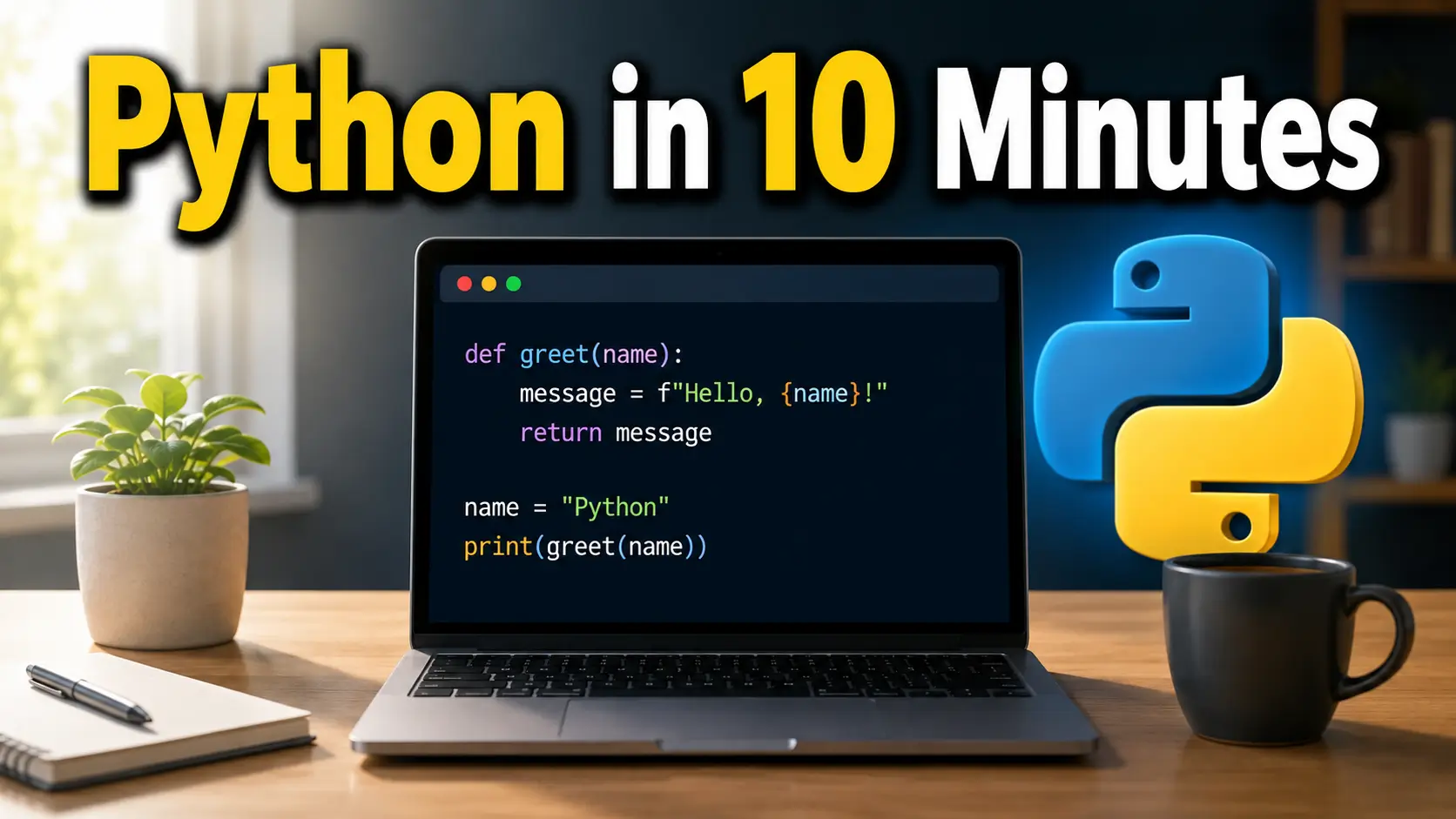
Create a clean YouTube thumbnail for a beginner Python tutorial. Show a laptop on a desk with a simple code window, soft daylight from the left, bold sans-serif title “Python in 10 Minutes” in the top third, high contrast, 16:9. No other text, no watermarks.
4. Refine with follow-ups
Treat the first image as a draft. Change one thing at a time:
- “Keep the same composition, but make the lighting cooler.”
- “Replace the laptop with a tablet. Keep everything else identical.”
- “Make the title larger and white; remove the small subtitle.”
Specific edits beat vague feedback like “make it better.”
5. Download or reuse
Open the image controls to download, or find auto-saved outputs in ChatGPT’s Images gallery (web/mobile). You can reopen an image later and continue editing in chat.
Prompt tips that actually help
| Focus | What to specify | Why it helps |
|---|---|---|
| Subject | Who/what, pose, materials | Reduces random substitutions |
| Style | Photo / illustration / UI mock / 3D | Anchors look before details |
| Composition | Camera distance, angle, crop, negative space | Leaves room for titles or UI |
| Text-in-image | Exact string in quotes + font feel + placement | GPT Image 2 is stronger with short, explicit copy |
| Aspect / use case | 1:1, 16:9, 9:16, or “poster” / “story” | Matches platform framing earlier |
| Constraints | What to exclude | Prevents clutter and brand lookalikes |
Text tip: Keep on-image copy short. Spell uncommon names letter-by-letter if accuracy matters. For dense diagrams, generate a draft in ChatGPT, then fix typography in a design tool.
Style tip: Prefer “original / generic treatment” over asking the model to copy a living artist or a trademarked brand look.
Editing workflow (upload + iterate)
ChatGPT Images is built for edit loops, not only text-to-image.
- Upload a reference (product photo, sketch, prior AI frame, mood board).
- Say what must stay and what must change.
Example: “Edit the attached photo. Replace only the mug with a small plant. Keep the person, desk, lighting, and crop exactly.” - Use multiple references sparingly. One image for content, one for style usually works better than a large dump. Refer to them by order (“Image 1… Image 2…”).
- Target regions when needed. If the UI lets you select an area—or you describe “bottom-left corner”—scope the edit so the rest does not drift.
- Lock the winners. When a version is close, repeat the constraints you care about in every follow-up so the model does not “improve” away your good composition.
This is often faster than regenerating from scratch for product mockups, outfit swaps, background cleanup, and layout tweaks.
Common use cases
- Thumbnails and social covers: High contrast subject, short title text, platform aspect ratio in the first prompt.
- Product mockups: Upload a real product photo; ask for lighting, surface, or lifestyle context while preserving the product shape and labels.
- Posters and event graphics: Specify hierarchy (title → subtitle → date), then simplify if text gets crowded.
- Concept art and mood frames: Broader style language first; tighten materials and camera once the idea lands.
- UI / explainer drafts: Useful for placeholders and rough diagrams; verify every label before publishing.
Limits and caveats
- Policy filters: Requests that violate OpenAI’s usage policies can be blocked or altered. Likenesses of real people need care and permission.
- Tiny or dense text: GPT Image 2 is stronger than older stacks on text, but fine print and crowded infographics still need human proofreading.
- Inconsistency across retries: The same prompt can vary; lock details in follow-ups when consistency matters.
- Plan and rate limits: Free and paid accounts can differ on speed, advanced modes, and how many images you can generate. Check OpenAI/ChatGPT help for your tier.
- Commercial use: Whether you can use outputs commercially depends on OpenAI’s / ChatGPT’s current terms and your plan or API agreement. Attribution to OpenAI is generally optional, but you should still follow usage policies and avoid infringing third-party IP. Read the official terms before client or ad work—do not rely on blog summaries alone.
When ChatGPT alone isn’t enough
Stay in ChatGPT if you mainly need conversational generation and light editing.
Choose the OpenAI API (gpt-image-2 via image generation / edit endpoints) if you are building an app, automating batches, or need programmatic control over size and quality. Start from OpenAI’s Image generation guide.
If you mainly need ChatGPT’s image model, ChatGPT is enough. If you want to compare GPT Image with other generators in one workspace—or you do not want a separate subscription for every vendor—you can also try it on Movby.ai’s ChatGPT Image / GPT Image page. Movby.ai is an independent aggregator (not OpenAI): one account covers 10+ image and video models (including GPT Image alongside options like Nano Banana, Flux, Grok Imagine, and Seedream), with 30 free credits for new users (no card; free outputs are for personal/non-commercial use and may include watermarks). Paid plans are for watermark-free commercial use. Browse the broader AI image generator catalog if you are evaluating more than one model.
FAQ
Is the ChatGPT image generator the same as GPT Image 2?
In ChatGPT, image generation commonly runs on GPT Image 2 under the ChatGPT Images 2.0 branding. In the API, the model id is gpt-image-2.
Do I need a paid ChatGPT plan to generate images?
As of OpenAI’s help docs, ChatGPT Images 2.0 is available on all tiers. Some advanced image features may be limited to paid plans—confirm on the live help page.
How do I generate images with ChatGPT effectively?
State purpose, subject, style, composition, and any exact text; then iterate with one change per message. Short, concrete prompts usually beat long keyword lists.
Can ChatGPT edit an image I upload?
Yes. Upload a reference and describe what to change and what to preserve. You can also continue editing images ChatGPT already generated in the thread or Images gallery.
Can I use ChatGPT images commercially?
It depends on OpenAI’s current terms for your product (ChatGPT vs API) and your use case. Check official Terms of Use and usage policies before commercial campaigns or client deliverables.
Next step
Open ChatGPT, generate one asset for a real project (thumbnail, mockup, or poster), and refine it with two or three precise follow-ups. If you later want the same GPT Image workflow beside other models in one place, start from Movby.ai or the ChatGPT Image tool page.