
If you want short AI clips from a prompt or a still image, this guide shows how to use Seedance 2.0 on Movby.ai today. Seedance 2.0 is ByteDance’s multimodal AI video model. On Movby.ai you run it in the browser as Seedance 2.0, Seedance 2.0 Fast, or Seedance 2.0 Mini—no separate app. You’ll walk through Seedance 2.0 text to video, Seedance 2.0 image to video, the settings that change the output, and how to draft cheaply before a higher-quality final.
What is Seedance 2.0?
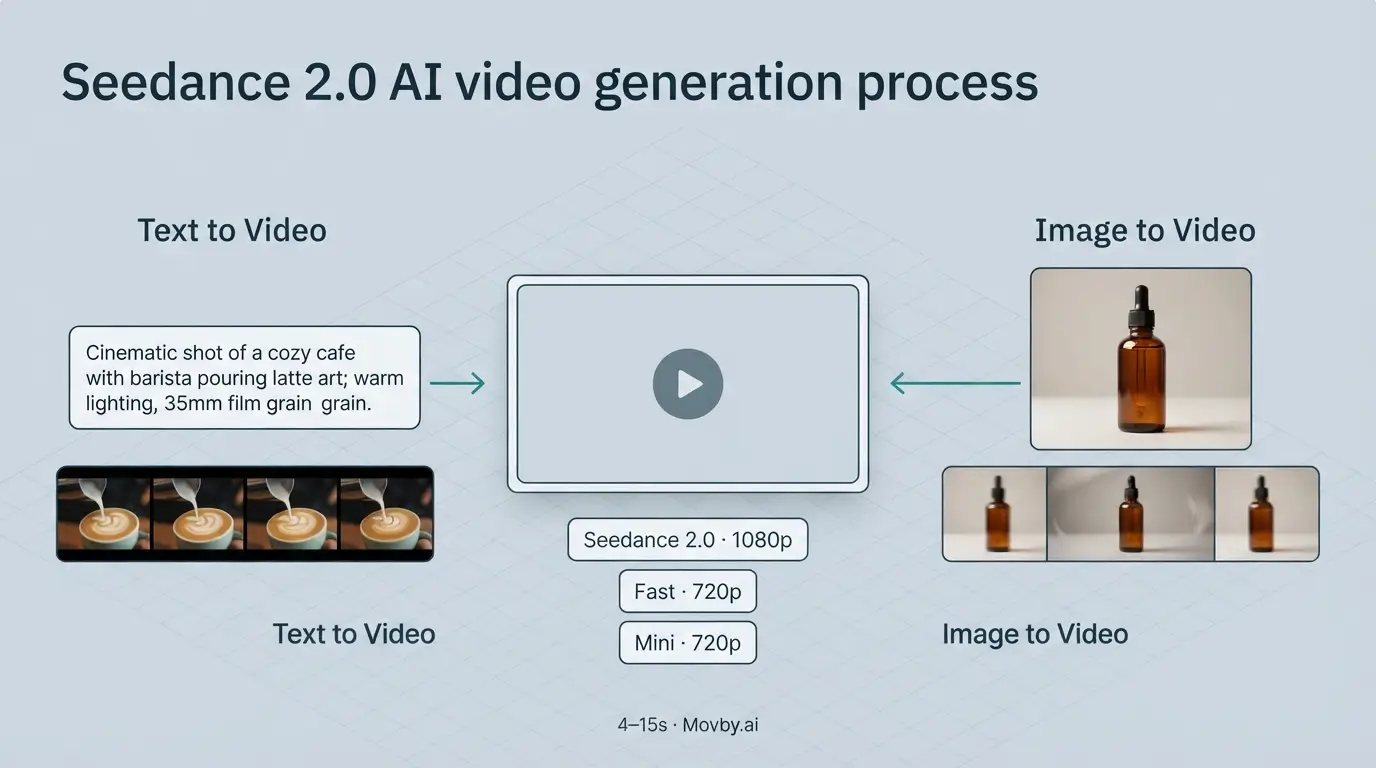
Seedance 2.0 is a ByteDance AI video generator that turns text, images, and optional video or audio references into clips from 4 to 15 seconds. On Movby.ai it supports text-to-video and image-to-video, native sound on or off, start/end frames, and aspect ratios including 1:1, 16:9, and 9:16. Standard Seedance 2.0 goes up to 1080p; Fast and Mini top out at 720p for quicker, lower-cost drafts.
What you need
- A Movby.ai account (new users get free credits; no card required to start)
- A clear prompt (up to 4,000 characters), or at least one image for image-to-video
- Optional: up to 9 reference images; up to 3 reference videos (total ≤15s); up to 3 reference audios (total ≤15s)
- Optional: start and end frames when you need a controlled transition
- A target platform in mind so you pick the right aspect ratio before you generate
Text-to-video vs image-to-video
Use Seedance 2.0 text to video when the scene starts from words—characters, camera moves, lighting, and action described in the prompt. Use Seedance 2.0 image to video when you already have a still (product shot, character art, storyboard frame) and want motion that stays close to that look. Image-to-video is also where start/end frames help: one image as the open, another as the close. References can support either mode when you need identity, camera language, or sound guidance.
How to do text-to-video with Seedance 2.0
- Open Movby.ai text to video and sign in if you are not already.
- Choose Seedance 2.0 in the model list. For prompt tests, pick Seedance 2.0 Fast or Seedance 2.0 Mini instead.
- Write the prompt: subject, action, camera, lighting, and any dialogue or ambient sound you want.
- Add references only if they help—character sheets, style frames, short motion refs, or audio paired with an image or video ref.
- Set duration (4–15 seconds; default is often 5), aspect ratio, resolution, and whether native sound is on.
- Generate. Jobs often take a few minutes; Fast and Mini are usually a bit quicker than full Seedance 2.0.
- Preview the clip. Tighten the prompt or swap Fast/Mini drafts until motion and framing look right, then re-run on standard Seedance 2.0 at 720p or 1080p if you need the final.
- Download the version you keep.
How to do image-to-video with Seedance 2.0
- Open Movby.ai image to video (or the Seedance 2.0 workspace and switch to image mode).
- Select Seedance 2.0, Fast, or Mini the same way as text-to-video.
- Upload the main image. If you need a controlled open and close, set start and end frames.
- Write a motion prompt: what moves, how the camera behaves, and what stays locked (face, logo, product edges).
- Add extra references when identity or motion needs a guide—up to 9 images, plus video/audio within the limits above. Audio reference requires an image or video reference as well.
- Choose duration, ratio, resolution (1080p only on standard Seedance 2.0), and sound on/off.
- Generate, review, and iterate. If the still drifts, simplify the action or strengthen the prompt around what must not change.
- Download when the motion and framing are good enough to publish or edit further.
Settings that actually matter
Duration. Clips are 4–15 seconds in 1-second steps. Shorter clips usually hold composition better. Ask for a 30-second story and you will still get a short clip—plan cuts, not a feature.
Aspect ratio. Match the destination before you spend credits: 16:9 for YouTube/web, 9:16 for Stories/Reels/TikTok, 1:1 for feeds, 4:3 or 3:4 for more classic framing, 21:9 for wide cinematic crops.
Resolution. 480p and 720p work on all three variants. 1080p is standard Seedance 2.0 only. Draft at 480p/720p on Fast or Mini; save 1080p for the approved prompt.
Sound. Native sound can be on or off. Turn it on when dialogue, Foley, or ambience should arrive with the picture. Turn it off if you will score the clip yourself.
Seedance 2.0 vs Fast vs Mini. Full Seedance 2.0 is slower and higher quality, with multimodal controls and up to 1080p. Seedance 2.0 Fast keeps the same multimodal controls at 480p/720p for faster, cheaper drafts. Seedance 2.0 Mini is the lightest, lowest-cost option for iteration. Same workflow; different cost/speed/quality tradeoff.
If you are comparing models on Movby.ai: Veo 3.1 leans cinematic with audio, Grok Imagine is faster for photoreal clips with audio, and Kling suits dynamic shorts. Pick by the look you need, not by a blanket ranking.
Prompt tips that improve the first usable take
- Lead with subject + action + camera. “Woman in a red coat walks toward camera, medium shot, slow push-in” beats “cinematic beautiful vibe.”
- Specify what must stay still. “Logo sharp and fixed center; only steam and soft light move.”
- Cap the story to one beat per clip. One entrance, one product turn, or one camera move—not three scenes.
- Name lighting and environment in plain terms: overcast street, soft window light, neon alley, studio softbox.
- For image-to-video, describe motion relative to the still: “hair and coat move in wind; face and jacket colors stay the same.”
- Use references for identity and timing; use the prompt for direction. Do not dump conflicting styles into both.
Example — text-to-video:
Close-up of a barista pouring latte art in a sunlit café. Slow lateral dolly left to right. Warm morning light, shallow depth of field, ceramic cup sharp in frame. Soft café ambience, no voiceover. 5 seconds, 16:9.
Example — image-to-video:
Animate the uploaded product bottle on a matte black table. Gentle 20-degree orbit around the bottle. Condensation beads slide slowly; label text stays sharp and readable. Soft studio reflections only. No new logos. 6 seconds, 9:16, sound off.
Common issues and fixes
Vague prompt → floaty or random motion. Rewrite with subject, action, camera, and lighting. Cut adjectives that do not describe something visible.
Asking for a long video. Duration maxes at 15 seconds. Storyboard multiple clips and edit them together.
Wrong ratio for the platform. Black bars and awkward crops usually mean you generated 16:9 for a vertical feed. Re-run at 9:16 (or the ratio you need) instead of cropping after.
Burning credits on 1080p drafts. Iterate on Seedance 2.0 Fast or Mini at 480p/720p. Move to full Seedance 2.0 at 1080p after the prompt works.
Audio reference without image or video. The model requires an image or video reference when you attach audio. Add one, or drop the audio ref and rely on native sound + prompt.
Drafts can still miss the motion you meant. That is normal—tighten one variable at a time (action, camera, or duration), not all three at once.
FAQ
Is Seedance 2.0 free on Movby.ai?
New users get free credits with no card required, enough to test prompts and Fast/Mini drafts. Paid plans cover more usage and commercial terms. Check current pricing on Movby.ai before a large run.
How long do Seedance 2.0 clips take to generate?
Often a few minutes. Full Seedance 2.0 tends to sit toward the longer end of that range; Fast and Mini are often a bit quicker. Treat that as a rough wait, not a guarantee.
Can I use reference video and audio?
Yes. Up to 3 reference videos and 3 reference audios, each set totaling 15 seconds or less, plus up to 9 images. Pair audio with an image or video reference.
What’s the difference between Seedance 2.0, Fast, and Mini?
Standard Seedance 2.0 is the higher-quality multimodal option up to 1080p. Fast and Mini share the same multimodal controls at 480p/720p, with Fast aimed at faster drafts and Mini at the lightest, lowest-cost iteration.
Does Seedance 2.0 include sound?
Yes. Native sound can be turned on or off. Use it when you want dialogue or ambience baked into the clip; turn it off when you will add your own track later.
Can I set start and end frames?
Yes, on Movby.ai’s Seedance 2.0 image-to-video flow. Use start/end frames when you need a defined open and close rather than free motion from a single still.
Next step
Run one 5-second draft on Seedance 2.0 Fast or Mini at 720p, lock the prompt, then generate the final on Seedance 2.0—1080p only when you actually need it.